
Article sections

What it is for
The function enable you to create questions with multiple-choices answer and end-user can only answer to one amongst the several proposal options
How to use it
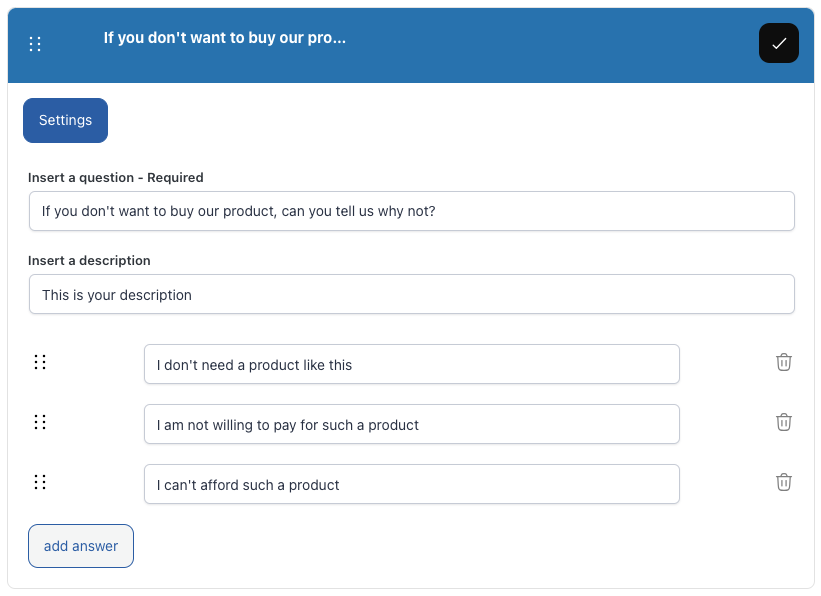
It can be filled three fields:
- Field “ Question” ( it is the main field that end-user have to answer to, it is mandatory)
- Field “Description” ( it allows you to address your end-users with a more detailed question)
- Field “Answer” ( answer end-user can select amongst options you provided)
You can add virtually endless answer through “Add answer” button.
You can freely manage each added answer, either choosing the sorting order or even deleting it.
Settings:
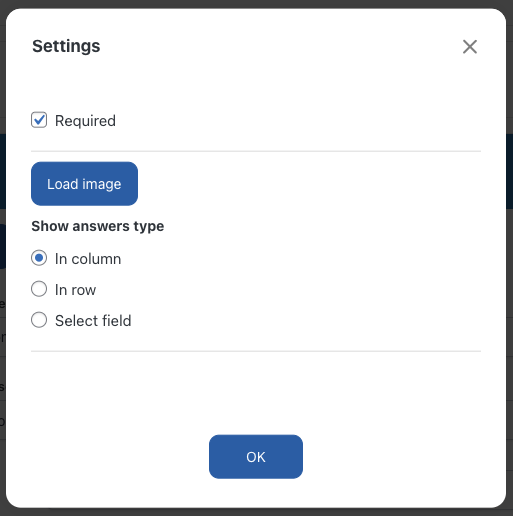
Through “Single choice” menu you can manage
- Required: you can make that question as a mandatory one.
- Image upload: ( it allows you attach/delete a question-related .jpeg/.png file)
Note: above points are options common to all questions.
Answer layout:
- per column
- per row
- select field
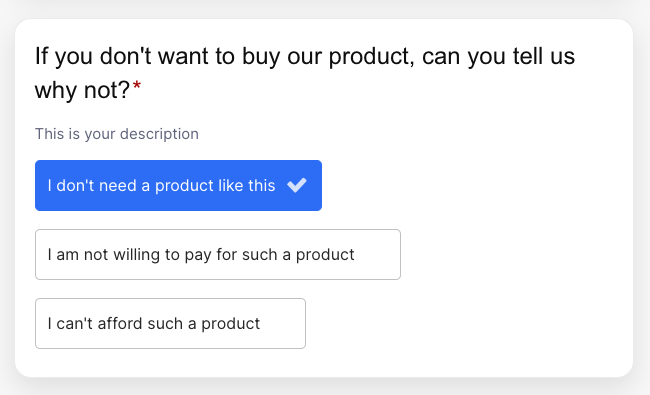
Once you have created and settled “Single choice” questions as above explained, a layout page as shown below will be displayed to your end-users:
Related Articles
4 Comments
Leave A Comment
September 6, 2021 at 8:37 am
It’s a great feature to have a demo installation for first try of Perfect Survey.
After the test I’m missing something like a „(single) choice drop down selection“ e.g. to select a US-State or EU-Country. Have I missed the right type of question?
Thanks
July 18, 2020 at 3:06 am
In the single answer I tried to make fields required but the end-user sees the question in a narrow column with most of the text under the following questions and the Answer choices do not seem to display.
July 20, 2020 at 11:25 am
Hi Pierre, thank you for contacting us.
Have you set the type of text field? To do this open the settings and select “TEXT” click save and you should have solved it.
Best,
Perfect Survey Team
June 17, 2020 at 1:48 pm
hello, testing out your plugin
in the single answer I would like to know if I can add an answer “Other” and if selected to add a text field
thanks